01
Two paths, two levels of commitment
The PC offers both paths from the same page: Web access for an approved duration, or a permanent installed Companion.
A — Temporary access
Web Companion, no installation
A temporary QR code opens a browser page. The duration is approved on the PC; the pairing may be retained according to that choice.
- No application to install
- Several durations, including SingleSession without PC-side registration
- The code expires, and a new one can be generated
- The browser may retain resume state; closing the page does not revoke access
Learn more →B — Permanent device
Android Companion installed
After installation, pairing creates a permanent trusted device that the PC keeps recognizing.
- Initial QR pairing, approved on the PC
- The link is kept between sessions
- Full remote controller, according to permissions
- Suspension and revocation stay controlled from the PC
Learn more →02
Pairing your phone
Pairing is explicit on both sides: nothing becomes active without an approval on the PC.
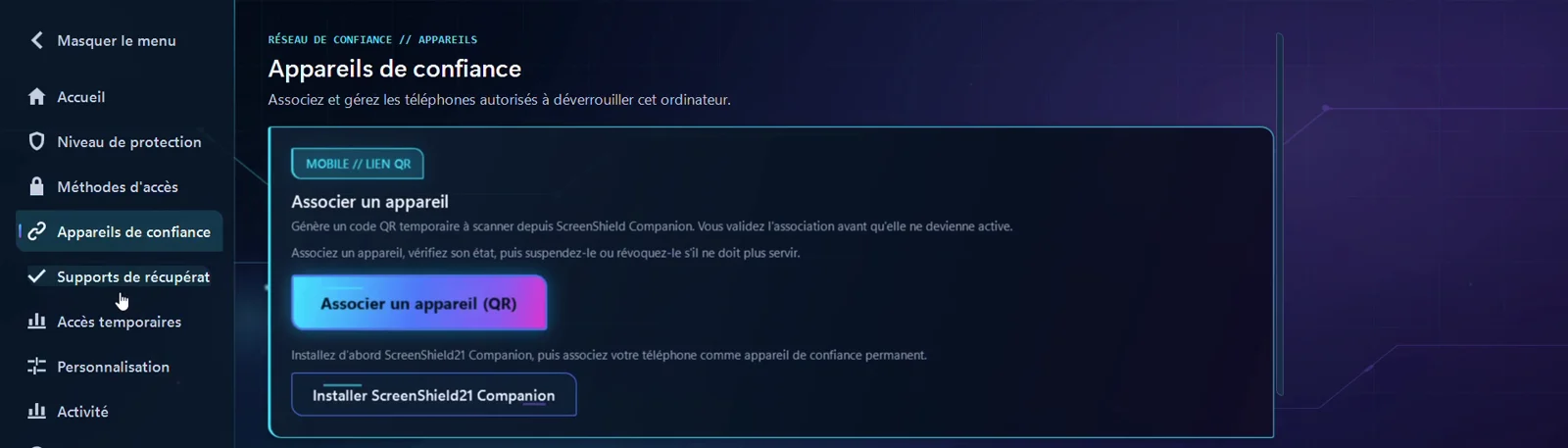
- On the PC, open Trusted devices and choose “Install ScreenShield21 Companion”.
- Install the application on the Android phone, then return to the PC and confirm the installation.
- In the Companion, choose “Add a computer” and scan the QR code shown.
- Check on the PC that the verification code matches the one on the phone exactly.
- Choose the permissions granted, then approve: the recommended minimum permissions are preselected.
- The device appears in the list, with its status and pairing date.
03
What the controller can do
In the installed Companion, each capability maps to a permission selected on the PC. The Web path currently receives all four initial permissions.
View status
Protection, lock state, connection, protection level, and last communication.
“View status” permission
View devices
Review the devices paired with the PC from the phone.
“View devices” permission
Lock
Trigger protection remotely, with confirmation from the PC.
“Lock” permission
Request an unlock
Send a signed authorization. The PC verifies, decides, and confirms.
“Unlock” permission
If the PC has granted no permission, the Companion says so clearly rather than offering an impossible action.
04
Two trust modes per device
Standard
The trusted device is used normally, with no extra step on the phone.
Trusted Device Standard mode
Biometric
The phone requires local biometric confirmation before protected actions. The fingerprint or face never leaves the phone: ScreenShield21 receives a confirmation, not biometric data.
Trusted Device Biometric mode
Biometric mode requires available strong biometrics on Android 11 or later. Its proof counts only within the Trusted Device family, never as a second MFA family.
Editable permissions
Changes take effect immediately, with no new pairing.
Suspension
Stops use temporarily, then resumes when you decide.
Revocation
Ends trust. The device stays listed as revoked and requires a new pairing.
Deletion
Removes the device from the list permanently. The action is irreversible.
06
Real distribution status
What you can get today, and what is still ahead.
- Android application
- Android validation sources: versionName 1.0.0, versionCode 10. These internal identifiers do not designate a public commercial release.
- Google Play
- Commercial distribution on the Play Store is planned, but is not open today.
- iOS
- No iPhone application exists. iOS remains deferred and is not announced for V1.
- Temporary access
- The Web Companion runs in a mobile browser and requires no installation.
- Known limitation
- This validation build keeps one active computer at a time; a newly approved pairing replaces the active one.